AIToday

GitHub Copilot app lets developers manage multiple AI agent sessions in one workspace

GitHub Blog (AI)4h agoSend on LINE
GitHub Copilot app lets developers manage multiple AI agent sessions in one workspace

Key takeaway

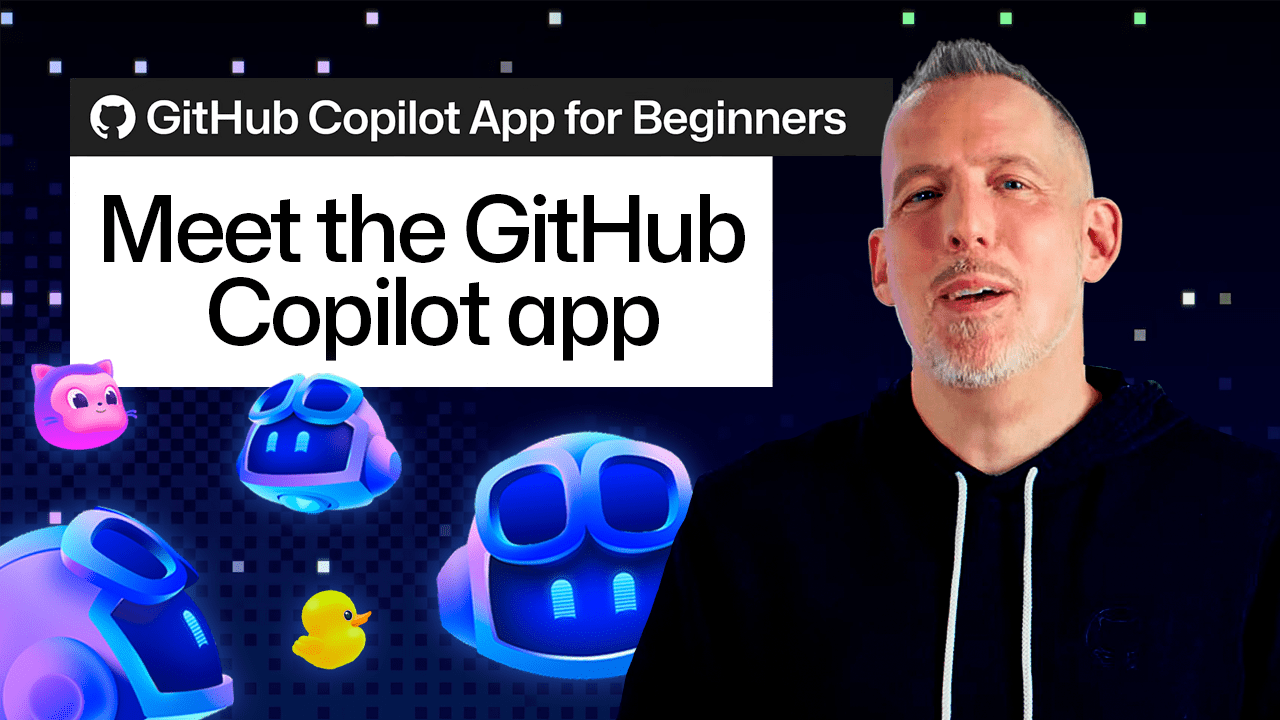
GitHub has launched the Copilot app, a workspace that organizes AI coding assistance around multiple concurrent agent sessions tied to specific projects, rather than a single chat window. The app lets developers switch between tasks without losing context, preview UI changes in an embedded browser canvas, and automate pull request workflows with Agent Merge—addressing the non-linear reality of software development where engineers constantly shift between bug fixes, code reviews, and exploration.

Summaries like this, in your inbox every morning.

Sign up free →

3 Key Points

  • What happened

    GitHub introduced the Copilot app, a workspace designed around multiple agent sessions connected to projects rather than a single chat window. Developers can switch between tasks, use Quick Chat for side questions, create browser canvases to preview UI changes, and enable Agent Merge to monitor pull requests and assist with review feedback and CI failures.

  • Why it matters

    Real software development involves jumping between bug fixes, code reviews, and exploring unfamiliar codebases — tasks that don't fit a linear chat flow. By anchoring each session to a project and letting developers maintain multiple threads of work simultaneously, the Copilot app aims to reduce time spent preparing environments and context-switching, keeping momentum on different parts of a workflow.

  • What to watch

    Key features include the /create-canvas command to preview applications directly in the app, Pick & Polish to refine UI elements by pointing and requesting changes, and Agent Merge's ability to address review feedback, resolve CI failures, and handle merge conflicts during the pull request process.

In Depth

GitHub has released the Copilot app, designed to reshape how developers interact with AI coding assistance by moving beyond a single chat window into a multi-session workspace anchored to projects. The app recognizes that real software development is non-linear: developers often jump between bug fixes, code reviews, and exploration rather than following a straight path.

The core structure centers each session on a project. When you select a project from the Copilot app home screen (either from a previous project or by adding one from GitHub or your local machine), you gain an agent session with immediate access to the codebase, files, and tools for that task. For example, if you want to add a breadcrumb navigation component to an existing application, you can describe the update, and the session examines the project, identifies relevant files, makes changes, and runs tests—eliminating manual file searching and environment setup.

Once a session is underway, you can create additional sessions for other work without interrupting the original. Quick Chat provides a lightweight way to start a new conversation from the home screen—you might use it to ask about Copilot functionality (such as how worktrees operate) or investigate how your codebase works while another session continues on a separate task. When you return to your original session, you pick up where you left off, review changes, and move forward.

For UI work, the app introduces browser canvas, an interactive space that displays your application directly within the workflow. Rather than opening a terminal and separate browser, you use the /create-canvas slash command to preview your application. If a UI component needs adjustment, you can enable Canvas Dev Mode and use Pick & Polish to point directly at elements on the page and request changes, with each refinement informed by the visual result.

Once changes are ready, Agent Merge extends the workflow into the pull request and review phase. After you open the pull request options in the Copilot app and select Agent Merge, you can configure which actions it takes—addressing review feedback, resolving CI failures, or handling merge conflicts. Agent Merge then monitors the pull request as it moves through review and CI, assisting with any issues that arise, and preparing the pull request for merge once required checks pass.

Context & Analysis

The GitHub Copilot app addresses a fundamental mismatch between how AI chat tools are typically designed and how developers actually work. Traditional chat-based AI coding assistants assume a linear, question-and-answer workflow, but real software development is context-heavy and task-switching is constant. A developer might begin implementing a feature, discover they need to understand an unfamiliar part of the codebase, pause to review a colleague's pull request, and return to the original task—each step requiring different context and tooling.

By anchoring agent sessions to projects and allowing multiple concurrent sessions, the Copilot app preserves context across these transitions. The addition of browser canvas—letting developers visualize UI changes directly within the workflow—bridges the gap between code review and visual feedback, a gap that normally requires opening a separate terminal and browser. Agent Merge's automation of pull request workflows (addressing feedback, handling CI failures, managing merge conflicts) extends the AI's role beyond initial code generation into the full development lifecycle, reducing friction at a stage where many code changes currently stall.

FAQ

How do I start using the GitHub Copilot app?
From the Copilot app home screen, select a project you've worked with before or add a new one from GitHub or your local machine. Once a project is selected, you can start an agent session with the codebase, files, and tools needed for your task.
Can I work on multiple tasks at the same time in the Copilot app?
Yes. You can create additional agent sessions for other tasks without interrupting existing work, and use Quick Chat to start a new conversation from the home screen. Each conversation can focus on a different area, letting you follow multiple threads without losing track of each task.
What is Agent Merge and how does it work?
Agent Merge monitors a pull request after you enable it and assists with tasks that come up during review and CI. You can choose which actions it can take, such as addressing review feedback, helping resolve CI failures, or handling merge conflicts. Once required checks pass, you can choose to merge the pull request.

Get the latest Large Language Models news every morning

AI-summarized, only the topics you pick — one digest a day via Email, Slack, or Discord.

Free · takes 30 seconds · unsubscribe anytime

Discussion

No comments yet. Be the first to share your thoughts!

Log in to join the discussion

Related Articles

Stay ahead with AI news

Get curated AI news from 200+ sources delivered daily to your inbox. Free to use.

Get Started Free

Free · takes 30 seconds · unsubscribe anytime